
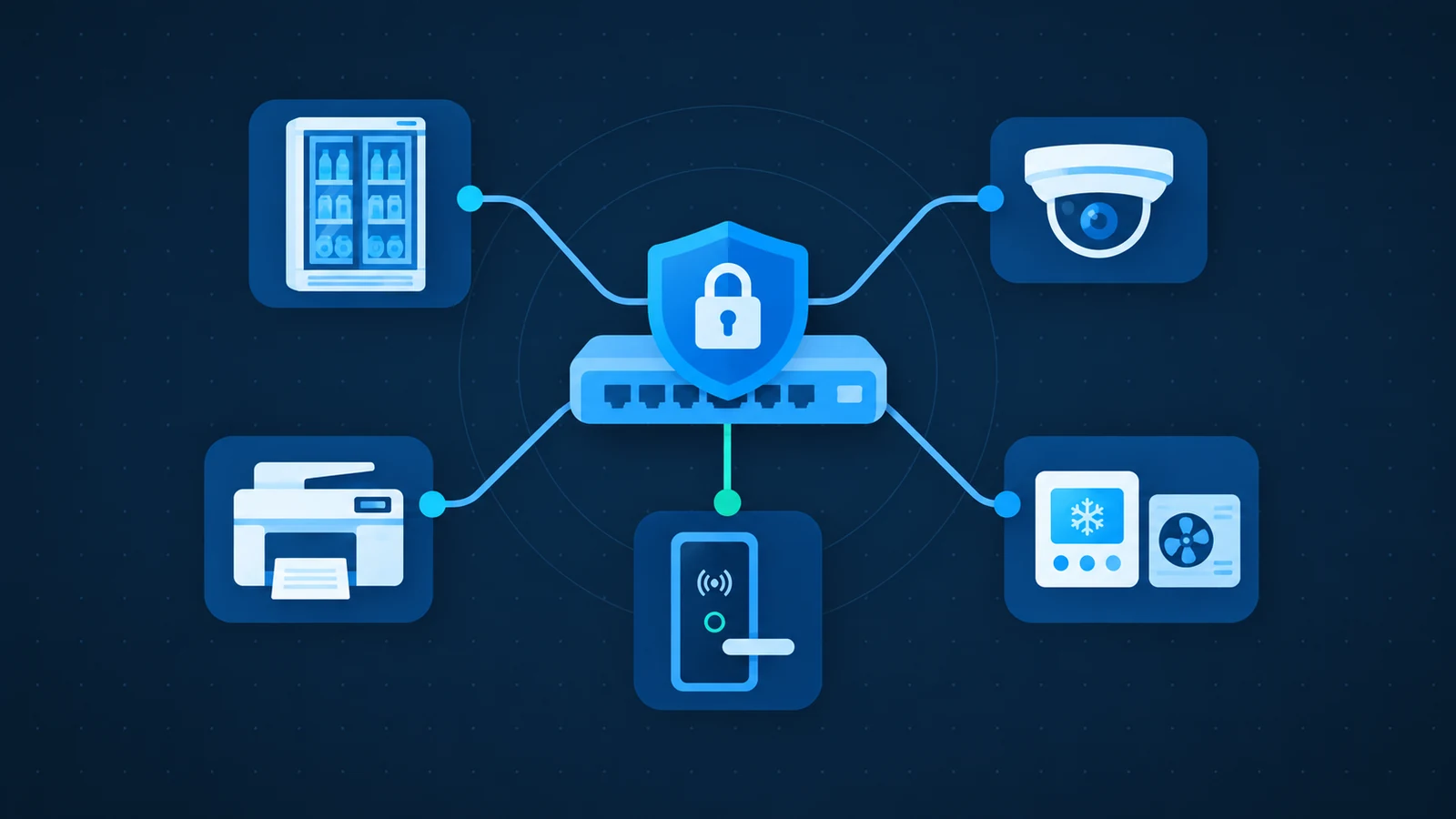
Smart device security means protecting every connected device that your business relies on, not just laptops and servers. Cameras, printers, door readers, refrigeration and heating controls can expose information or interrupt physical operations if access is poorly managed.
Start with one overlooked connected device
- Record its business purpose, location, owner and specialist supplier.
- Trace who can reach it locally, remotely and through a cloud portal.
- Check update support, administrator access and replacement planning.
- Agree operational checks with the specialist; do not disable safety functions.
Start with the business process, not the gadget
A compromised camera might expose images; an altered controller could interrupt a service. A refrigeration fault could put stock at risk, while an unavailable door system could delay access. These are possible consequences, not a claim that every connected appliance has the same vulnerabilities.
List each device, its location, owner, supplier, network connection and support end date. Include equipment installed by landlords or maintenance companies. Ask what stops working if the device, its internet connection or its supplier’s cloud service becomes unavailable.
Separate equipment and restrict who can reach it
Operational equipment should not automatically share unrestricted access with office computers or guest Wi-Fi. Have the IT team design separate network zones and permit only the connections each system needs. A separate Wi-Fi name without access rules is not enough.
Remove unnecessary internet exposure and unused services. Replace default credentials, use individual administrator accounts where supported, and protect supplier portals with MFA. Coordinate changes with the equipment specialist: isolation must not disable alarms or safety functions.
A device record that connects IT with operations
Fictional example: an office printer. Safety-critical equipment needs a specialist-approved assessment rather than copying the same settings.
Ownership and access
- Purpose: staff printing and scanning.
- Owner: office manager; maintenance contact held in approved records.
- Document permitted office connections and the actual supplier-access route.
Support and checks
- Record firmware version, update source and support end date.
- Review stored documents and approved secure-printing settings.
- After an authorised change, test printing, scanning and monitoring; record the result.
Buy supportability, not just smart features
Before buying, ask who supplies security updates, how they are installed and when support ends. Record a replacement plan for devices that cannot be updated. Check how ownership, cloud accounts and administrator access transfer when a supplier changes.
Schedule updates around operational requirements and test the result. For a printer that includes secure printing and stored documents; for a controller it includes the approved operating settings and alarm delivery. Never test a security change by altering live food-storage conditions.
Keep an independent way to detect trouble
A successful login check does not prove that equipment is operating correctly. Where a process warrants it, use independent monitoring and escalation, such as a separate temperature alarm. Agree who responds outside office hours and how staff continue safely when remote management fails.
Discuss isolation and manual operation with qualified personnel before an incident. Do not disconnect safety-critical equipment blindly. Start this week with one overlooked device: identify its owner, check its update status and document its actual access path.
Turn the checklist into a practical next step
ICT Shift reviews the networks and access controls around connected equipment, working with specialist suppliers rather than replacing their safety responsibilities. Explore Cybersecurity & Business Continuity, review the underlying Cloud & Infrastructure management, or talk to an engineer to assess the devices your business depends on.