
An IT update checklist gives every business update a defined scope, a recovery route and checks of real user workflows. Installing the new version is only one step; confirming that the business still works is the finish line.
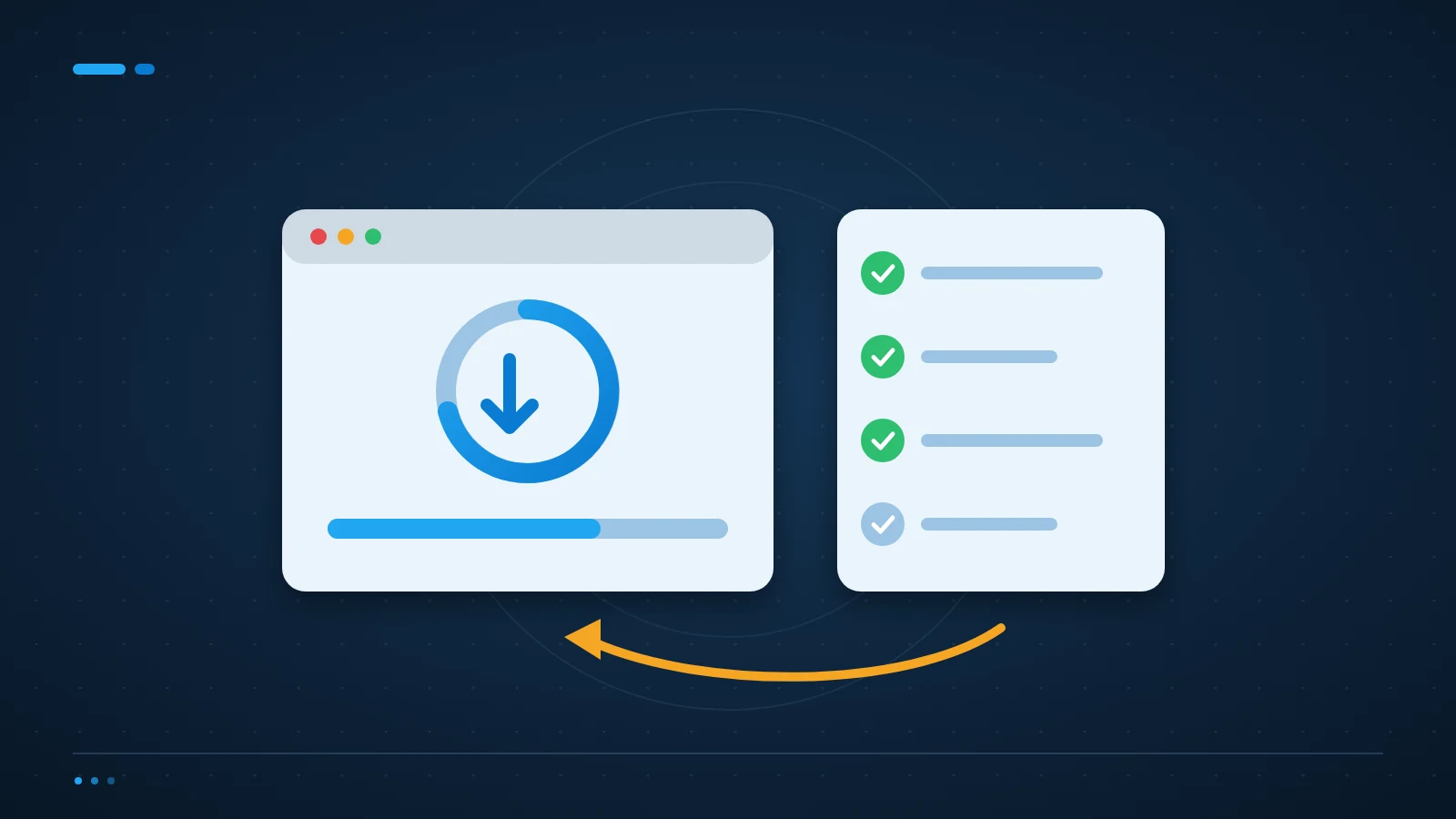
Four checks before the maintenance window
- Scope: versions, dependencies and the person approving the change.
- Recovery: current backups and a vendor-supported rollback route.
- Decision: a stop point that leaves time to recover.
- Acceptance: safe tests of the workflows users actually need.
Write down what will change and who decides
Name the system, versions, dependencies and maintenance window. Identify who approves the work and who can stop it. Check release notes for changed requirements, removed features and security fixes.
Urgent security updates may need a faster path, but urgency does not remove the need to know the affected systems. Record why a shorter test was chosen and what additional checks will follow.
Check your recovery route before starting
Confirm that backups cover the data and configuration you may need. Some updates change database structures or external integrations, making a simple software downgrade insufficient. Ask the vendor which rollback paths are supported.
Define a decision point: if the key workflow fails by a particular time, who chooses recovery rather than further troubleshooting? Include enough time to restore service within the agreed window.
The homepage loads. Is the update really finished?
Illustrative business-application check. Use test records and no-send modes so validation does not charge a customer or issue a real notification.
Technical checks
- Confirm the installed version and application health.
- Check scheduled tasks, integrations and access permissions.
- Record errors and known limitations.
Business checks
- Sign in with the appropriate user role.
- Walk through a safe example of the main workflow and its export.
- Have the named owner accept the result or invoke the recovery decision.
Test the customised parts, not just the homepage
A page can load while an invoice export, email template or login flow has stopped working. List the integrations and custom features the business depends on. Test them in a suitable non-production environment where possible.
After the update, check user roles, sign-in, scheduled work and a safe example of the main workflow. Use no-send or test modes for checks that would otherwise charge a customer or send a real notification. Do not create live transactions merely to test a screen.
Is automatic updating always a bad idea?
No. It can be appropriate when the system has reliable recovery and clear post-update checks. The decision depends on compatibility risk and business impact. An unattended update without verification is different from a controlled automatic process. The UK National Cyber Security Centre explains why keeping devices and software up to date matters for security.
What should we record after maintenance?
Record the installed version, test results, remaining issues and any rollback decision. A named owner should accept the outcome. Keep known limitations explicit rather than declaring success because no one has reported a problem yet.
Make the IT update checklist part of the service
ICT Shift’s Managed IT Support handles operational support, while Cloud & Infrastructure management addresses system dependencies and maintenance.
Talk to an engineer about your update process if the current plan is to install changes and wait for users to notice a fault.